
UI-TARS Desktop is a native GUI agent for controlling a computer or browser with natural language. It comes from ByteDance’s TARS stack and is driven by UI-TARS / Seed vision-language models that look at screenshots, reason about the interface, and emit concrete mouse and keyboard actions.
I am writing this as my own user guide and learning guide. I do not want only the marketing line that “an AI agent can use your computer.” I want the actual mental model:
- What happens when I type an instruction?
- What is a local operator versus a remote operator?
- What does the model need to be configured correctly?
- Why do permissions, screenshots, browsers, and single-monitor setup matter?
- How does the SDK generalize the same pattern for custom GUI automation agents?
- Where should I be careful before letting an agent operate a real desktop?
Official sources used: UI-TARS-desktop GitHub, README, Quick Start, Settings guide, SDK guide, and deployment note.
What UI-TARS Desktop is
UI-TARS Desktop is a desktop application for GUI automation through a vision-language model. The agent does not only call structured APIs. It watches the screen, identifies UI elements visually, and produces actions such as click, type, scroll, drag, hotkey, or finish.
That makes it different from a classic browser automation script.
Classic automation says:
Find element by selector -> click -> assert DOM state.
UI-TARS-style computer use says:
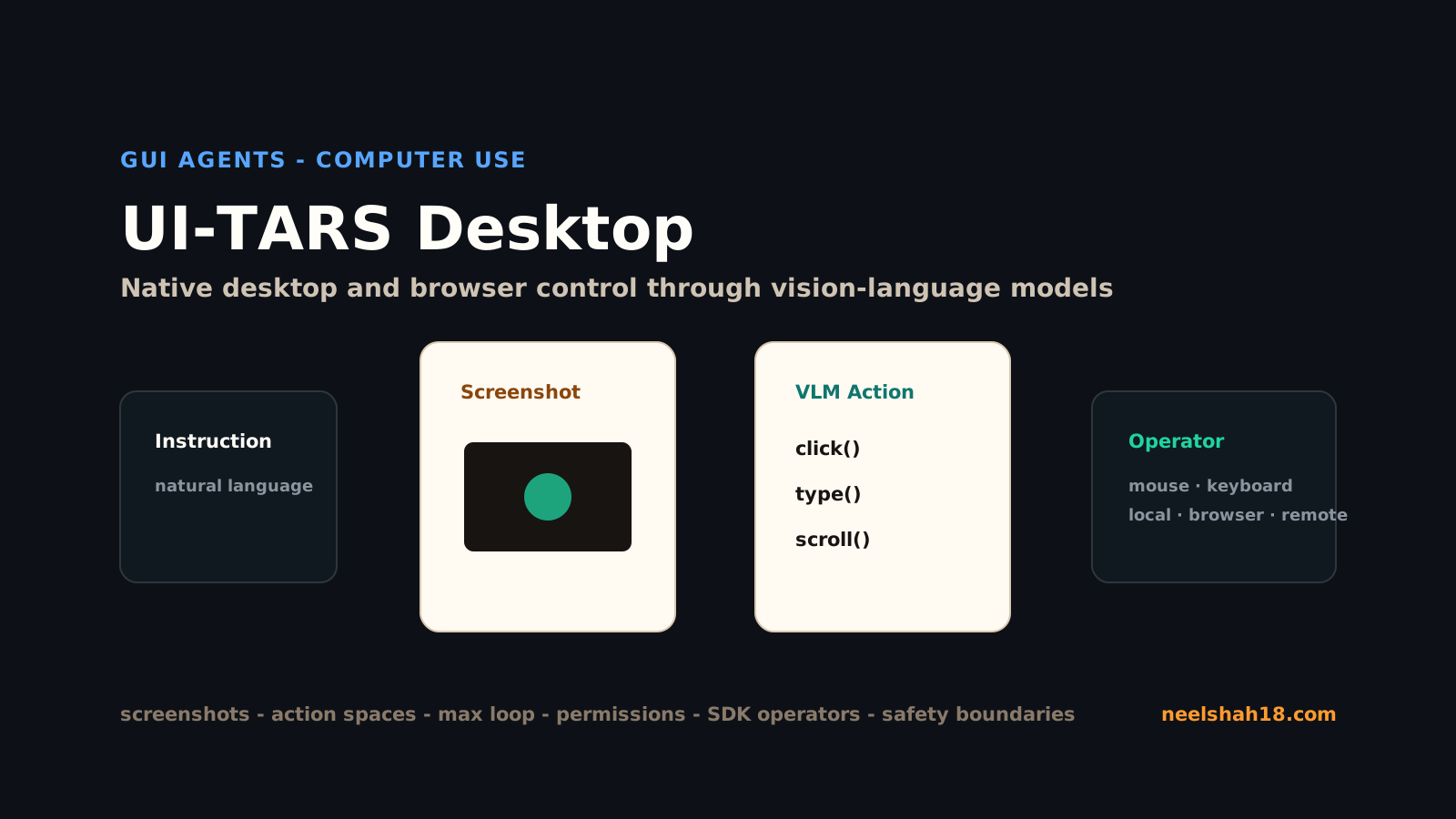
Take screenshot -> ask VLM what to do -> parse action -> execute mouse/keyboard -> take next screenshot.
This matters because many real user tasks do not expose clean APIs or stable DOM selectors. Settings screens, desktop applications, browser pages, remote machines, modal dialogs, and mixed GUI flows are all visual.
The repository currently sits inside a broader TARS stack:
- Agent TARS is the general multimodal agent stack with CLI/Web UI, browser control, MCP integration, event stream, and tool execution.
- UI-TARS Desktop is the native desktop application focused on GUI agent operation for local computer, remote computer, and browser operator workflows.
The README describes UI-TARS Desktop as a native GUI agent for your local computer, driven by UI-TARS and Seed-1.5-VL/1.6 series models. It lists features such as natural-language control, screenshot and visual recognition, precise mouse/keyboard control, cross-platform support for Windows, macOS, and browser contexts, real-time status display, and local/private processing.
The core loop
The whole system can be understood as a loop.
- You give an instruction.
- The operator captures the current screen.
- The model receives the instruction, available action space, and recent screenshots.
- The model predicts the next action.
- The operator executes that action.
- The loop repeats until the task is done, hits a limit, or is stopped.
This loop is why GUI agents feel more like “watch and act” systems than ordinary chatbots. The model is not answering a question once. It is repeatedly grounding language in pixels.
Local operator vs remote operator vs browser operator
UI-TARS Desktop talks about local and remote computer/browser operation. These modes are easiest to learn as three execution surfaces.
| Surface | What it controls | Best for | Main caution |
|---|---|---|---|
| Local computer operator | Your own desktop | Real desktop workflows, OS settings, local apps | Requires permissions and can affect your real machine |
| Browser operator | A browser session | Web tasks, research, forms, account workflows | Browser must be installed; web pages can change |
| Remote computer/browser operator | A remote machine/browser | Isolated operation, demos, safer experimentation | The hosted free remote operator path has changed over time; self-deploy if needed |
The quick-start docs note that Browser Operator needs Chrome, Edge, or Firefox installed. They also note an important limitation: UI-TARS Desktop is currently only available for a single-monitor setup, and multi-monitor configurations may cause some tasks to fail.
That limitation makes sense. A GUI model relies on screenshot coordinates. Multi-monitor layouts create coordinate ambiguity, different scaling, and window placement problems.
My rule: start single-monitor, low-stakes, and visible. Do not start by giving it a sensitive production admin workflow.
Official demo videos to watch first
Before configuring the app, I would watch the official UI-TARS Desktop demos in the repository README:
- UI-TARS Desktop showcase: local and remote operator videos
- Broader Agent TARS / UI-TARS community use cases
The two UI-TARS Desktop examples shown in the README are useful because they cover both sides of the product:
- Computer-use task: asking the agent to open VS Code settings, enable AutoSave, and set the delay to 500 milliseconds.
- Browser-use task: asking the agent to check the latest open issue in the UI-TARS Desktop GitHub project.
When watching these videos, pay attention to the loop rather than only the final result:
- Where does the cursor move?
- How many screenshots does the agent need?
- Does it recover when UI state changes?
- Does the local operator behave differently from the remote operator?
- Where would you want human confirmation before continuing?
That is the practical skill. The video is not just a demo; it is a way to learn what a GUI agent is actually doing step by step.
Installation and permissions
The easiest install path is the release page. On macOS, the quick-start shows the familiar drag-to-Applications flow. If you use Homebrew:
brew install --cask ui-tars
On macOS, permissions are not optional. You need:
- Accessibility: so the app can control the keyboard and mouse.
- Screen Recording: so the app can observe the interface.
The app cannot be a GUI agent without both.
On Windows, the project shows a Windows application flow as well. The exact permissions are different, but the same security idea applies: a GUI agent is powerful because it can see and act. Treat it like automation with real side effects.
Model configuration
UI-TARS Desktop is only useful after the VLM provider is configured correctly.
The settings guide lists provider options including:
- Hugging Face for UI-TARS-1.0
- Hugging Face for UI-TARS-1.5
- VolcEngine Ark for Doubao-1.5-UI-TARS
- VolcEngine Ark for Doubao-1.5-thinking-vision-pro
The required fields are:
Language: en
VLM Provider: Hugging Face for UI-TARS-1.5
VLM Base URL: https://your-endpoint/v1/
VLM API KEY: your_api_key
VLM Model Name: your_model_name
or for Doubao:
Language: cn
VLM Provider: VolcEngine Ark for Doubao-1.5-UI-TARS
VLM Base URL: https://ark.cn-beijing.volces.com/api/v3
VLM API KEY: YOUR_API_KEY
VLM Model Name: doubao-1.5-ui-tars-250328
The quick-start specifically warns that the provider must match the model family so action parsing works correctly. It also says the Hugging Face base URL should end with /v1/.
Settings also include:
- Check Model Availability
- Use Responses API, if the model supports it
- Language, which affects model output localization
- Max Loop, with range
[25, 200] - Loop Wait Time, with range
[0, 3000] - Local browser operator search engine
- Optional report storage and UTIO event collection settings
Two settings matter most for safe learning:
- Max Loop: prevents runaway operation.
- Loop Wait Time: gives pages and apps time to settle before the next screenshot.
A safe first task
Do not start with “book my flight” or “change my cloud billing settings.”
Start with a reversible task:
Open a browser and search for the UI-TARS Desktop GitHub repository.
Then:
Open VS Code settings and search for autosave, but do not change anything.
Then:
Open VS Code settings and enable autosave with a 500 ms delay.
The first task tests browser grounding. The second tests navigation without mutation. The third tests a controlled setting change.
Choose a task type.
The SDK mental model
The @ui-tars/sdk guide is important because it exposes the underlying architecture.
The central pieces are:
GUIAgentUITarsModelOperator
The operator interface has two required responsibilities:
screenshot(): capture the current screen state.execute(): perform the action predicted by the model.
The model sees the instruction, action spaces, and recent screenshots. The operator executes the parsed prediction.
Basic TypeScript example from the docs’ shape:
import { GUIAgent } from '@ui-tars/sdk';
import { NutJSOperator } from '@ui-tars/operator-nut-js';

const guiAgent = new GUIAgent({
  model: {
    baseURL: config.baseURL,
    apiKey: config.apiKey,
    model: config.model,
  },
  operator: new NutJSOperator(),
  onData: ({ data }) => {
    console.log(data);
  },
  onError: ({ data, error }) => {
    console.error(error, data);
  },
});

await guiAgent.run('send "hello world" to x.com');
The NutJS operator supports desktop automation actions such as click, double click, right click, drag, hover, typing, hotkeys, scrolling, and screenshot capture.
This abstraction is useful because it separates intelligence from the operating surface:
GUIAgent
  -> model decides what should happen
  -> operator decides how to observe and act
That means you can imagine custom operators for desktop, browser, mobile, remote machines, or controlled test environments.
Status and stopping
The SDK guide lists statuses such as:
INITRUNNINGENDMAX_LOOP
It also supports abort signals. That matters in real GUI automation. A visual agent can get confused by popups, permission dialogs, cookie banners, loading states, or mismatched coordinates. You need a stop button.
In learning mode, I would always keep:
- low max loop;
- visible desktop;
- easy abort;
- no sensitive accounts open;
- no payment or deletion tasks;
- one monitor;
- browser/app windows placed clearly.
Building custom operators
The SDK’s advanced section explains that a custom operator extends the base Operator class and implements:
screenshot()execute()
It can also define action spaces. Action spaces tell the model what kinds of actions are allowed, for example:
click(start_box="")
type(content="")
scroll(direction="")
finished()
That is one of the most important ideas in GUI agents. The model should not have infinite freedom. It should operate inside a bounded action vocabulary.
When implementing execute(), the operator receives parsed prediction details, screen dimensions, DPR scale factor, and coordinate scaling factors. This is why GUI automation is harder than text automation: coordinates must be transformed correctly from model space to physical screen space.
Planning plus GUI execution
The docs also mention combining reasoning/planning models with GUI execution.
The pattern:
- A planning model breaks a high-level task into steps.
- UI-TARS executes each GUI step.
Example plan:
open chrome
open trip.com
click search
select Beijing in the from input
select Shanghai in the to input
click search
This is the right design for longer workflows. Asking one visual model loop to solve everything end-to-end can work, but plans make the task easier to inspect and recover.
For serious tasks, I would want:
- plan visible before execution;
- confirmation before irreversible steps;
- screenshots logged;
- final report exported;
- max-loop and timeout limits.
Reports, UTIO, and observability
The settings guide describes report export and optional report storage. If a report storage base URL is configured, exporting can upload an HTML report and return a public URL. The docs also describe UTIO, UI-TARS Insights and Observation, which can send events such as app launch, instruction submission, and report sharing to a configured server.
This is useful, but also sensitive.
For personal learning, local report export is enough. For team usage, observability is important, but events can include instructions and screenshots. Treat report and telemetry endpoints like sensitive infrastructure.
What UI-TARS is good for
Good fit:
- UI testing where selectors are unavailable or unreliable.
- Desktop configuration walkthroughs.
- Browser workflows that mix visual and DOM complexity.
- Local app tasks with visible state.
- Demonstrating computer-use agents.
- Research into GUI grounding and action parsing.
- Building custom GUI operators through the SDK.
Bad fit:
- High-risk financial or admin actions without confirmation.
- Multi-monitor workflows.
- Workflows where an API is safer and more reliable.
- Tasks requiring exact deterministic replay.
- Sensitive data entry without isolation.
- Background automation where you cannot watch what happens.
The key is to use the right abstraction. If a stable API exists, use the API. If the task is visual and human-like, a GUI agent becomes interesting.
Troubleshooting checklist
If UI-TARS Desktop performs poorly:
- Confirm you are on a single-monitor setup.
- Confirm Screen Recording and Accessibility permissions on macOS.
- Confirm Chrome, Edge, or Firefox is installed for Browser Operator.
- Confirm the selected VLM provider matches the model family.
- Confirm Hugging Face endpoint URLs end with
/v1/where required. - Use Check Model Availability.
- Lower max loop during testing.
- Increase loop wait time for slow pages.
- Put target windows in obvious locations.
- Avoid tiny UI elements and unusual scaling at first.
- Watch for cookie banners, modals, and permission popups.
My learning path
This is how I would learn UI-TARS Desktop:
- Install the desktop app.
- Configure permissions.
- Configure a known supported VLM provider.
- Use Check Model Availability.
- Run a browser search task.
- Run a non-mutating local desktop task.
- Run a small reversible local setting change.
- Export or inspect the report.
- Try Browser Operator.
- Read the SDK guide and map the same loop to
GUIAgent,model, andoperator. - Build a tiny custom operator only after the desktop app behavior makes sense.
The main lesson: UI-TARS Desktop is not “just another chatbot.” It is a screen-observe, model-predict, operator-execute loop. Once you understand that loop, the rest of the system becomes easier to reason about: permissions, screenshots, action spaces, model provider selection, loop limits, reports, and safety all follow from it.
Used carefully, UI-TARS Desktop is a serious learning surface for the next wave of computer-use agents.